Most people buy an under desk walking pad, walk on it eleven times, and slide it under the bed. I know the pattern because I lived it. I spent nine years as a backend engineer sitting ten hours a day, and at 31 my L5 disc herniated. My physical therapist gave me one instruction that mattered: move every hour or pay for it later.
A walking pad is the cheapest way to follow that instruction inside a workday. It is also the piece of home office gear people set up worst. They put it on carpet, set the speed too high, lose the remote under a keyboard, and quit in two weeks.
This is the setup order I use in my own office in Austin, the one I rebuilt around movement. Two machines do most of the work here, a flat budget pad and a step-up model with incline and app control. The steps below apply to both.
Why you should trust me
I have three walking pads in my house right now, and I keep a step counter, a tape measure, and a spreadsheet of decibel readings taken at my desk. I measure noise at ear height while the belt is moving at walking speed, not at idle in an empty room. That distinction is the entire game. A pad that measures 48 dB sitting still can hit 58 dB under a 2 mph stride, and 58 dB is the difference between a normal Zoom call and a client asking what that sound is.
I do not run on walking pads, and I will not tell you to. That is a treadmill review with a different safety profile, and the belt on a slim pad is not built for a stride that long. I also make no medical claims. I am not your physical therapist. I am the person who ignored mine for two years and has the MRI to prove it.
How I picked and how I tested
What I care about is not motor marketing. Most pads at the budget end share similar drive hardware, and the differences that show up in daily use are the frame, the belt width, the deck height, the remote, and how the machine behaves at 2.5 mph.
So that is what I measure. Deck height with a tape measure, because every inch of deck changes your standing posture. Belt width against my stance, because a 16 inch belt and a 20 inch belt are different products for anyone with hips wider than a teenager's. Noise at ear height at 1.5 and 2 mph. Remote behavior across a full workday, because I press mine around 40 times a day and line-of-sight requirements are a dealbreaker. Wobble at 2.5 mph. Whether the transport wheels scrape the floor when the pad is parked.
Both machines below got the same treatment: a full workday walked at 2 mph, with a step count at the end and a note on whether my back felt better or worse than a sitting day.
The number I trust most is not on any spec sheet. It is whether I can hold a conversation at 2 mph without raising my voice. If I can, the pad is quiet enough for calls. If I cannot, it is a footrest with a belt.
The two pads I would set up first
These are the two I would actually put in an office, one at each end of the budget.
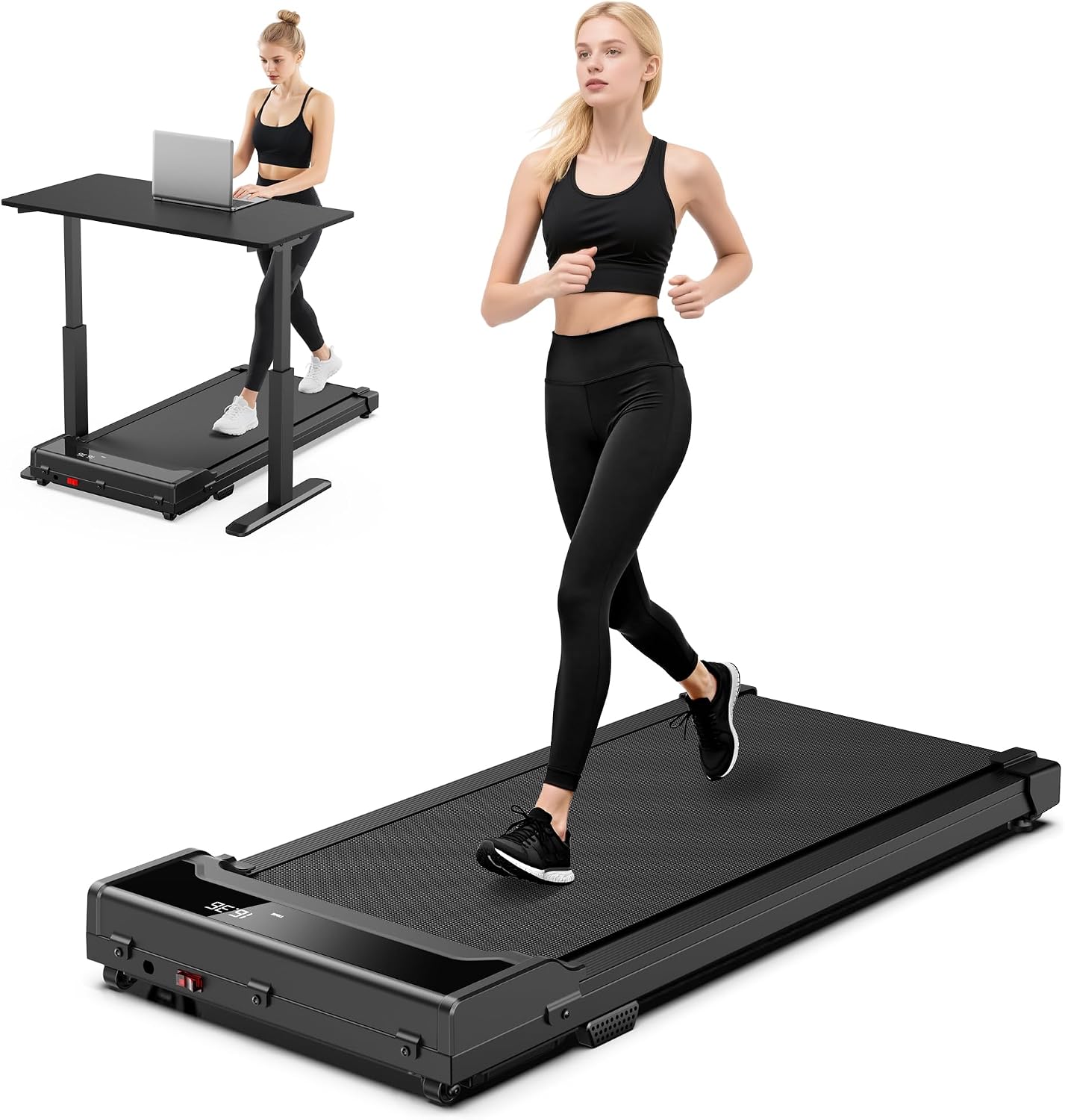
Budget pick: Walking Pad Treadmill for Home - Under Desk Walking and Running Portable Electric Machine Adjustable Slim Compact with 0.6-4.0MPH Modes Max up 265 Lbs with Remote Control for Home Office
 Visit on Amazon →
This is the flat pad I recommend to the person who wants to find out whether they will actually use a walking pad before spending real money. It is slim and compact, the speed range starts at 0.6 mph, and the weight limit is 265 lbs, which covers most adults. It comes with a remote control, and on a pad this simple the remote is the whole interface.
That 0.6 mph floor matters more than the top speed. The first week of walking while working is a coordination problem, and a machine that can go slow enough for you to answer an email is the machine you keep using. The top of the range is where I stop caring, because I do not run on pads and neither should you.
Flaws but not dealbreakers: There is no incline here, so the walking demand stays flat. The word "running" in the name is marketing, not a capability I would test with my own knees. The frame is light, which is good for moving it and less good for stability if you crank it to the top of its range. Keep it under 2.5 mph and it behaves.
Anyone with a $400-ish total budget who needs a desk first and a pad second should start here, because the pad is the cheaper half of that pair.
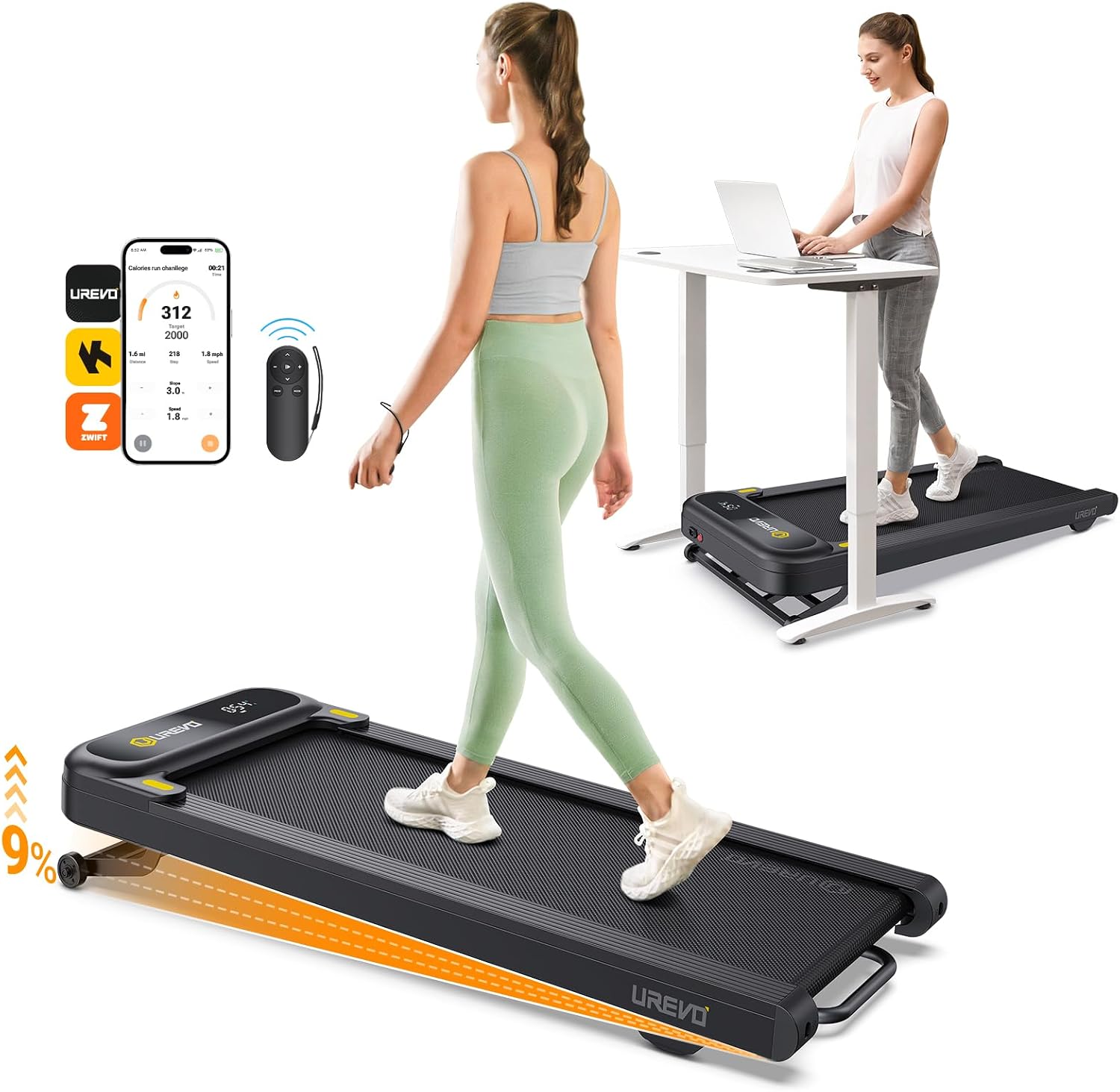
Step-up pick: Smart Treadmill with 9% Auto Incline, Hiking and Running Walking Pad Treadmills for Home Office, Treadmill with UREVO APP, AI Powered Music Course, HIIT Programs Synced to Scenic Route, One-Click Mute
 Visit on Amazon →
This is the pad for someone who already knows they walk. The headline feature is the 9% auto incline, and incline is the one adjustment that changes the work your legs do without changing your speed. That matters if you have walked flat at 2 mph for a year and your body has stopped noticing.
The one-click mute is the feature I did not expect to care about and now use constantly. I take calls with a headset, but mute on the machine itself means the belt and motor noise drop out of the room in one press instead of me reaching for software. The UREVO app adds programs and synced routes if you want structure, and the app is optional for basic walking, which is how I prefer it.
Flaws but not dealbreakers: An app that wants an account before it will change speed is a pet peeve of mine, so treat the programs as a bonus and the manual controls as the real machine. Incline also raises your heart rate, which means at 2 mph on a slope you will type worse than you do on the flat. Use incline for call blocks and reading, drop it for deep work.
Anyone who already hits 8,000 steps before dinner and wants the desk hours to count toward something more than standing will get the most out of this one.
The setup workflow, in order
Do these in order. Skipping step one is why people end up with a pad that hurts their neck.
Step one: Measure your desk before the pad arrives. Your standing desk height should put your elbows at roughly 90 degrees with your forearms flat. Then add the deck height of the pad to that number, because you are standing on the machine, not the floor. If your desk maxes out at 45 inches and your pad adds 5, you need a desk that goes higher. Measure first, order second.
Step two: Set the desk to your elbows, not your eyes. People set standing desks too high and then wonder why their shoulders ache. Elbow height, monitor top at or slightly below eye level, keyboard flat. If you have to reach down to type, the desk is too high.
Step three: Get the floor right. A walking pad wants a hard, flat surface. Thick carpet lets the belt slip and traps heat under the deck. If you must put it on carpet, use a thin, firm mat under it. Check the transport wheels on day one. If they scrape your floor when you roll the pad out, put a felt pad under each wheel or lift it instead of dragging it.
Step four: Decide where the remote lives. This is the most underrated step in the whole guide. If the remote needs line of sight, it lives on the desk surface, not in a drawer and not in your pocket. Mine sits next to my mouse. Forty presses a day is not an exaggeration, and a remote you have to hunt for is a pad you stop using.
Step five: Start at the bottom of the speed range for the first week. That means 0.6 to 1.0 mph, 20 minutes at a time, twice a day. This is not a warm-up, it is calibration. You are learning whether you can type at a walk, and you are teaching your back that standing and moving is normal.
Step six: Match speed to task. Typing and precision work: 0.6 to 1.5 mph. Calls, reading, and email triage: around 2 mph. Anything above 2.5 mph is not work time, it is exercise time, and you should treat it as a separate block with the keyboard pushed away.
Step seven: Measure your own noise, at your own ear height. Walk at 2 mph and hold a phone decibel meter at the height of your ear, not down at the belt. Do it while the HVAC is running, because that is your actual room. If you cannot take a call without a headset at 2 mph, drop to 1.5 mph or accept that this pad is for music and podcasts only.
Step eight: Learn the auto-stop and use the safety clip. Every pad in this class has a stop mechanism and a safety lanyard. Clip it on. Never leave a pad running when you step off, even for a second, and never step onto a moving belt from the side. Walking barefoot is fine on a textured belt, but check your footing at the low speed before you trust it at 2 mph.
Step nine: Build a schedule that survives week three. The eleven-use pattern is not a discipline problem, it is a scheduling problem. Put the pad on a calendar block right after lunch, 15 minutes, and stack it on something you already do, like a daily standup call. Habit stacking beats motivation every time.
Step ten: Store it so you will use it tomorrow. Roll the pad out of the way only if you have to, and roll it back to the same spot each morning. A pad that takes 30 seconds to deploy gets used. A pad that requires moving a chair, a rug, and a power strip does not.
Why these two and not something else
The category gets confusing because sellers use the word treadmill for everything with a belt. A pad with handrails is a different machine with a different risk profile, and comparing a slim pad to gym equipment is how people get hurt. I keep the two categories separate.
Between these two, the split is honest. The flat budget pad is the cheapest way to find out if you will walk at your desk at all, and it is the one I would hand to a friend who has never owned one. The step-up model is for the person who already walks and wants incline, structured programs, and a mute button within reach. Neither one is a running machine, and neither one should be bought to replace a gym.
What this all costs
I am not going to quote prices here, because they move, and a stale number is worse than no number. Check current Amazon price on both links above and do the math on the day you read this.
What I can tell you is the shape of the decision. The budget pad is the lower-cost entry, and it buys the one thing that matters: the ability to hit 2 mph while you answer email. The step-up model costs meaningfully more, and it buys incline, app programs, and one-click mute. Divide either number by the number of weekdays in a year and it is a small daily number, smaller than the coffee most people drink while sitting still.
The cost that actually matters is the desk. A walking pad without an adjustable desk is a floor mat with a motor. Budget the pair together, or do not buy either.
That is the whole job. Measure the desk, set the elbows, put the remote where your hand already is, start slow, and walk for 15 minutes after lunch. The machine is the easy part. The order is what keeps you on it past week three.